Convert a PDF bank statement to Excel
To turn a PDF bank statement into Excel, drop the file into the box above and press Convert. Statesift reads the text layer of the PDF, builds one row per transaction and checks the rows against the printed balances. You then download an .xlsx file with real dates, signed amounts and a Check sheet.
By The Statesift team (Product and testing). Last updated .
PDF up to 15 MB. Read in memory, never stored.
How to turn a PDF bank statement into Excel, step by step
- Log in to online banking and download the statement as a PDF, not as a scan.
- Choose the PDF in the box above. If the bank locked it, type its password.
- Press Convert and wait for the stamp: Balanced, Check rows or No balance.
- Download the Excel file. Your transactions sit on the Transactions sheet and the totals on the Check sheet.
Your first statement is free with a free account, up to 5 pages. After that, see the pricing page for prices and plans, or read how we test the tool.
PDF bank statement to Excel tested with a real statement
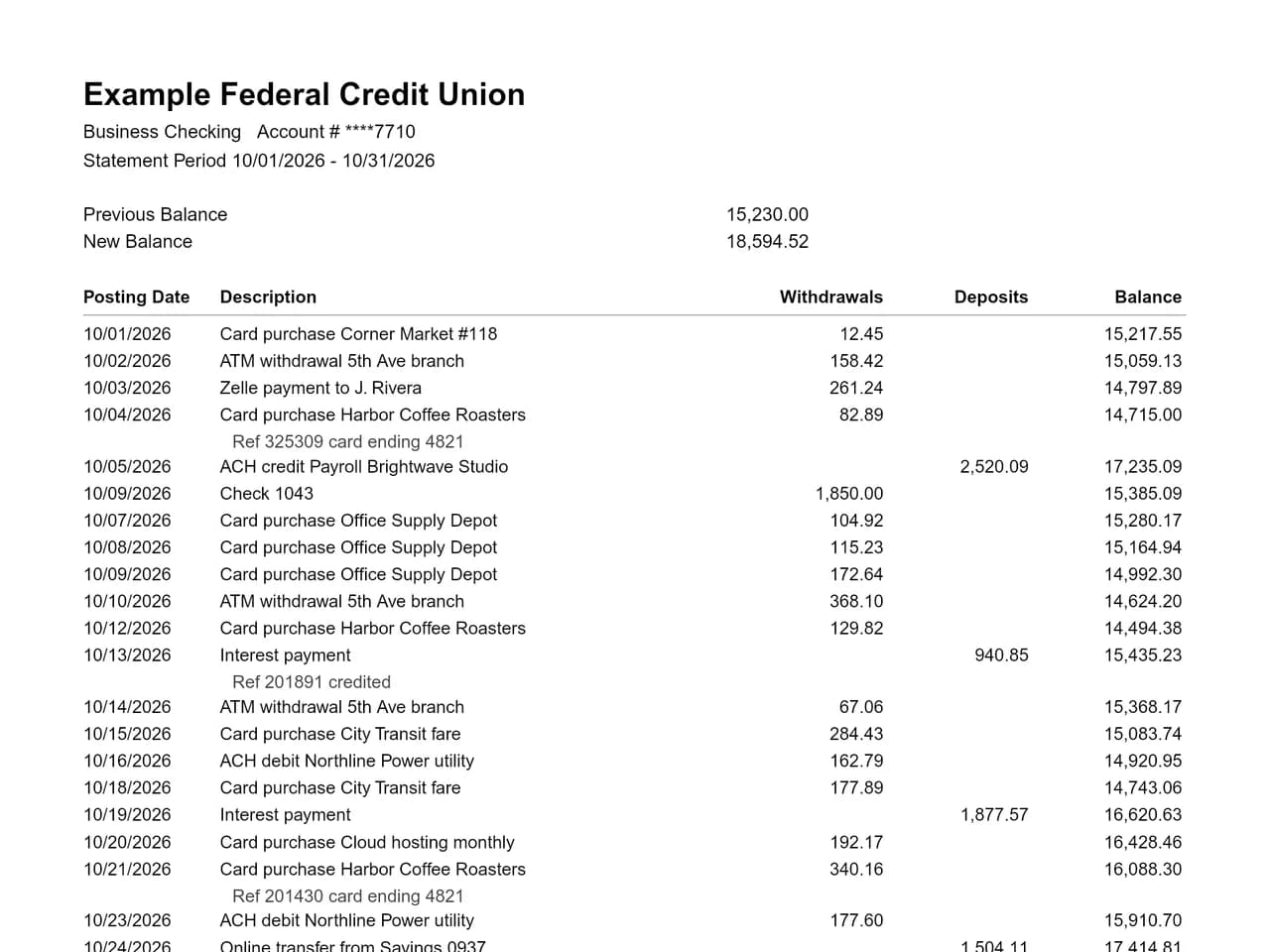
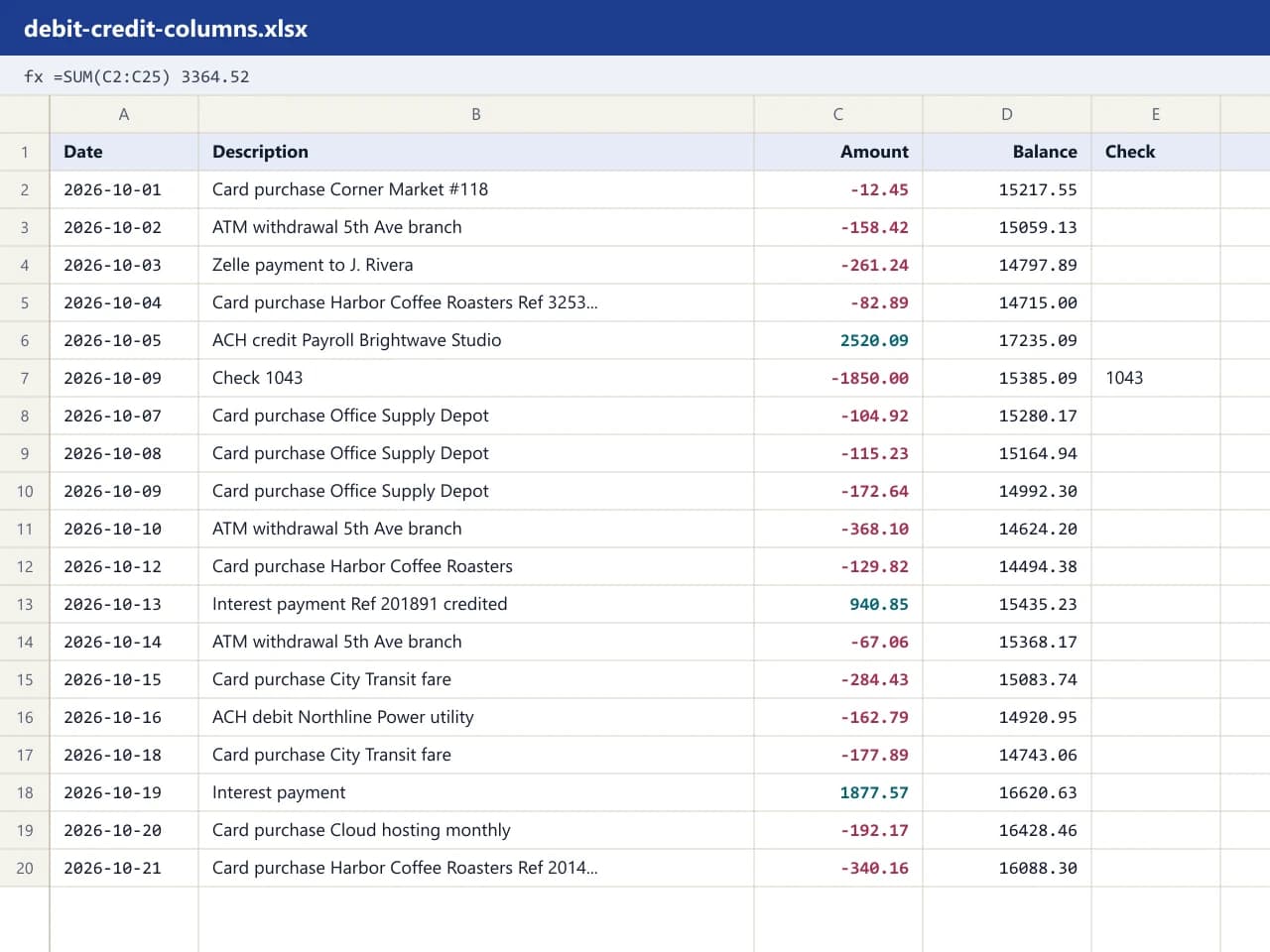
We ran one of our own test statements through the same code the tool on this page uses. So the pictures and the numbers below come from that run, not from a mockup.
 Balanced
- Test input
- debit-credit-columns.pdf
- Output
- debit-credit-columns.xlsx
- Rows
- 24
- Money in
- 8243.43
- Money out
- 4878.91
- Pages
- 1
- Currency
- USD
- Output size
- 9 KB
- Engine time
- 28 ms
How we test: each test statement prints an opening and a closing balance, and the run only counts when the rows add up to both. More on the about page.
Why a PDF bank statement is hard to get into Excel
A PDF stores text as loose pieces placed on a page, not as a table. So when you copy a statement and paste it into a sheet, the dates, payees and amounts often land in one long column. Some banks also print the year only once, at the top of the page, which leaves each pasted date incomplete.
Statesift reads those pieces by their position on the page and rebuilds the columns. Then it works out the date format from the statement itself, whether month first, day first or ISO. It also takes the year from the statement period, so a period that runs from December into January still gets the right year on every row.
Locked and password protected PDFs
Many banks lock their PDF downloads with a password. In that case, the converter asks for the password before it reads anything. You type the same password you use to open the file on your own computer, and the run goes on as normal.
We use the password only to open the file for this one run. We never store it, and we never store the PDF either. The file stays in memory while the rows come out, and the server drops it as soon as the response goes back to you. Also, we never ask for an online banking login, because the tool works only with the file you choose.
Debit and credit columns, wrapped lines and check numbers
Bank layouts differ a lot. Some print one Amount column with a minus sign, while others split money out and money in into Debit and Credit columns. The Excel file gives you both views: a signed Amount column, where money out is negative, plus separate Debit and Credit columns for people who prefer them.
Long payee names often wrap onto a second or third line in the PDF. Instead of turning each line into a new row, the converter joins those lines to the transaction they belong to. Check numbers move to their own column, so you can match them with your check register. Finally, the running balance on the statement fixes the sign of each row when the layout leaves it unclear.
When this is not the right tool
A scanned paper statement or a phone photo has no text layer, so there is nothing for the converter to read. We do not run OCR yet, and the tool tells you so rather than guessing at numbers. JPG and PNG files fail for the same reason. For these, download the PDF version from online banking, or ask your bank for one.
The tool also handles one statement file per run. If you need a full year of PDFs in one sheet, you run each month and then paste the sheets together. And if your bank already offers an Excel or CSV export for the dates you need, that export is the faster path, since it comes straight from the bank's own system.
PDF bank statement to Excel: key facts
| Item | Detail |
|---|---|
| Input | PDF with a text layer, password protected files included |
| Not supported | Scans, photos, JPG and PNG files |
| Excel sheets | Transactions and Check |
| Date formats | Month first, day first and ISO |
| Free use | First statement free, up to 5 pages, with a free account |
| Paid use | $2.99 per statement up to 10 pages, then $0.20 a page, up to 60 pages |
PDF bank statement to Excel FAQ
Can I convert a PDF bank statement to Excel without Power Query?
Yes. Upload the PDF here and download the .xlsx file. Power Query in Excel can read tables from a PDF, but statements often split wrapped lines into extra rows, so you would still clean the result by hand.
Why does my bank statement PDF paste into one column?
Because a PDF keeps text by its spot on the page, not in cells. Copy and paste loses that spot. A converter that reads the layout puts each value back in its own column.
My PDF asks for a password. Will it still work?
Yes. Type the password in the field that appears after you choose the file. We use it for that run only and do not keep it.
Does it work with a scanned statement?
Not yet. A scan is an image with no text layer, and the tool does not run OCR. It shows a clear message instead of a wrong sheet.
How many pages can one PDF have?
Your free statement covers up to 5 pages. A paid statement can have up to 60 pages and 15 MB. If a free file runs longer, you see the first 5 rows as a preview and keep your free statement.