Convert a bank statement to Xero import files
To get a bank statement to Xero, upload the PDF here and press Convert. Statesift reads the transactions, checks them against the opening and closing balance, and gives you a CSV and an OFX file. Xero accepts both as a statement import, so you can then reconcile the account as usual.
By The Statesift team (Product and testing). Last updated .
PDF up to 15 MB. Read in memory, never stored.
How to import a bank statement to Xero, step by step
- Save the statement from your online banking as a PDF and drop it into the box above.
- Press Convert and read the stamp. Balanced means the rows add up to the closing balance.
- Download the CSV if you want to review rows in Xero, or the OFX file for a quick import.
- In Xero, open the bank account, import the statement file, then reconcile the new lines.
Your first statement is free with a free account, up to 5 pages. After that, see the pricing page for prices and plans, or read how we test the tool.
Bank statement to Xero tested with a real statement
We ran one of our own test statements through the same code the tool on this page uses. So the pictures and the numbers below come from that run, not from a mockup.
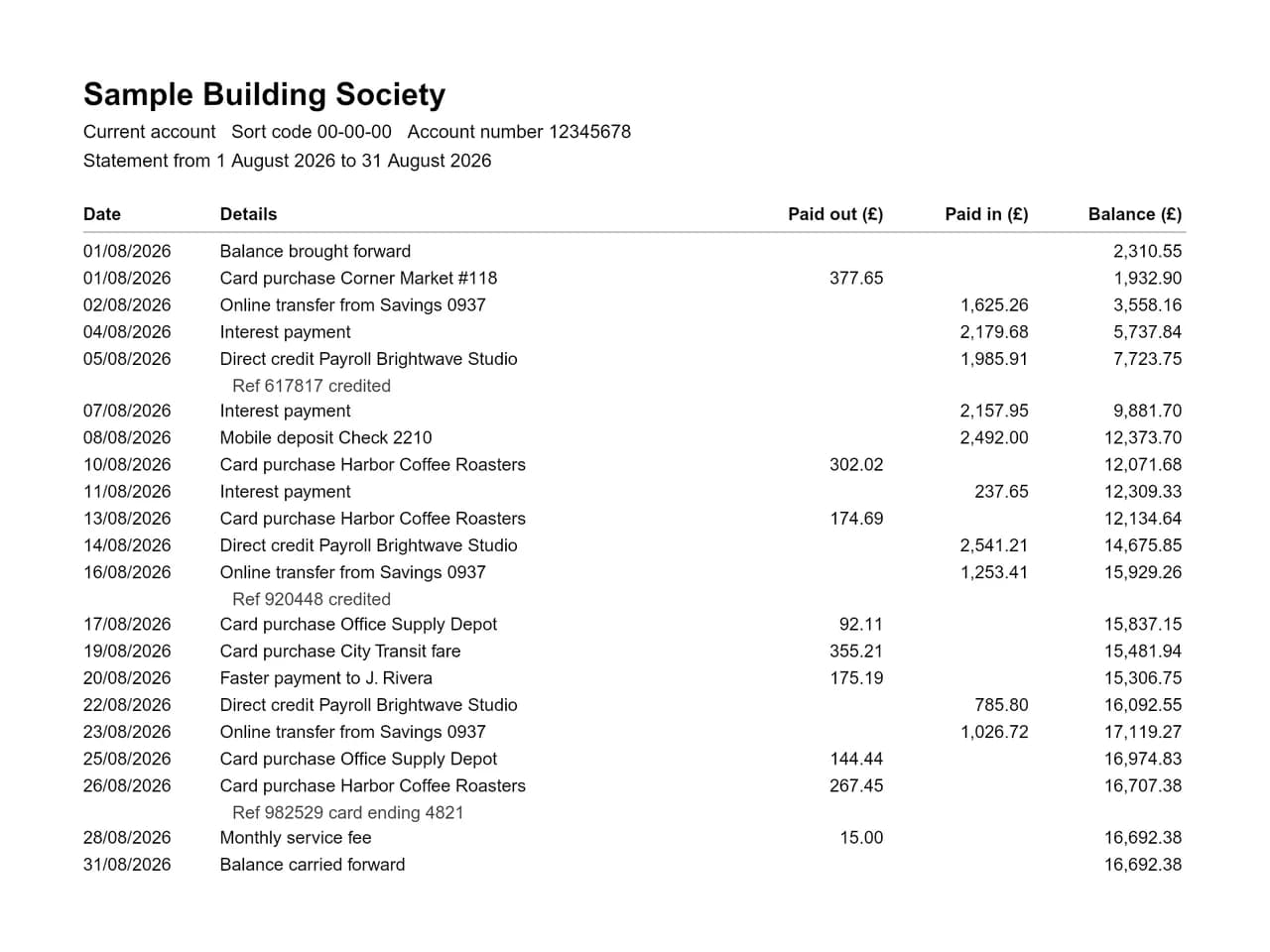
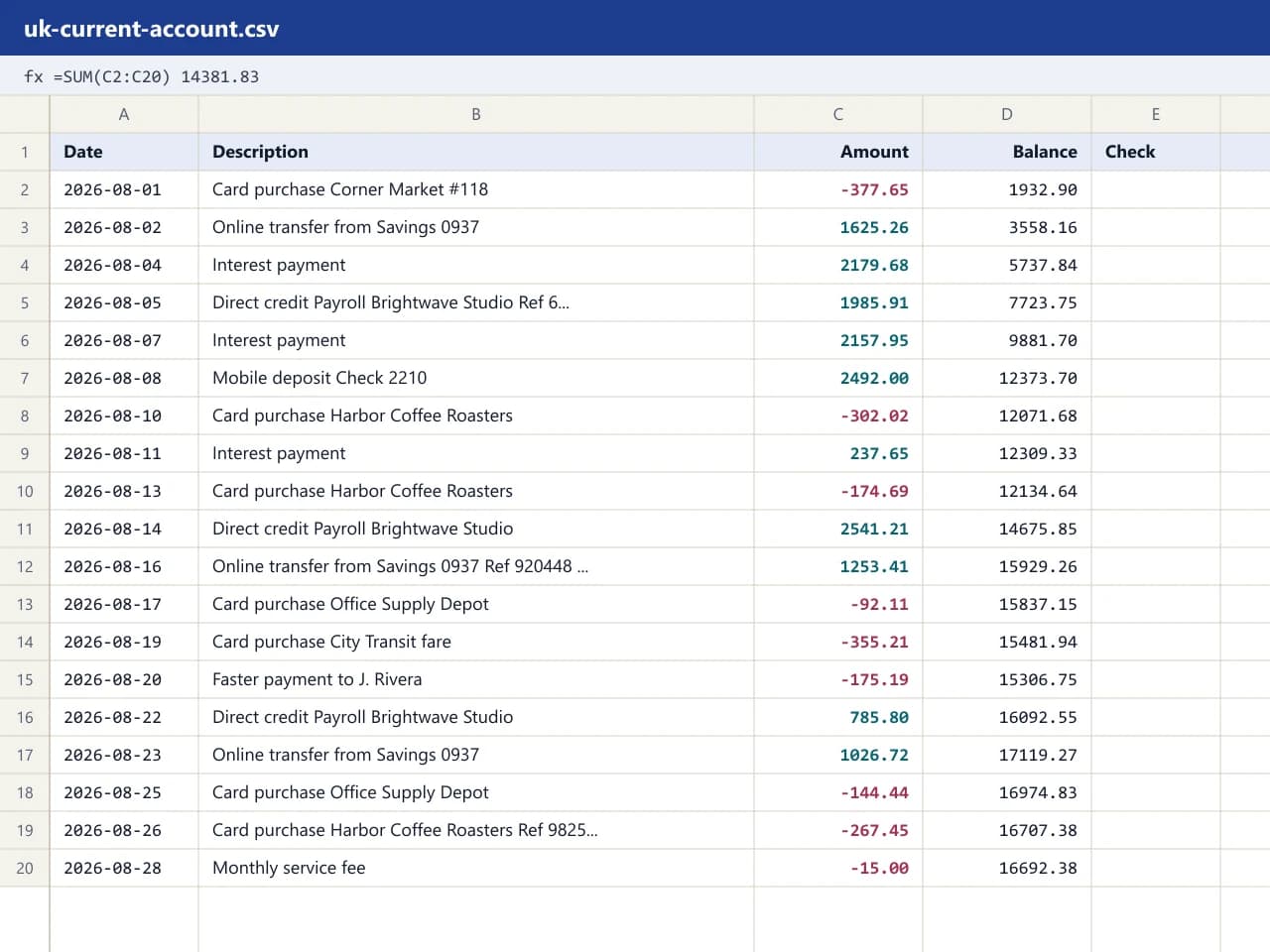 Balanced
- Test input
- uk-current-account.pdf
- Output
- uk-current-account.csv
- Rows
- 19
- Money in
- 16285.59
- Money out
- 1903.76
- Pages
- 1
- Currency
- GBP
- Output size
- 1 KB
- Engine time
- 17 ms
How we test: each test statement prints an opening and a closing balance, and the run only counts when the rows add up to both. More on the about page.
Which files Xero takes from a bank
Xero lists OFX, QIF, QBO, QFX and CSV as the statement files you can import from online banking. Every Statesift run gives you a CSV and an OFX file, plus QBO and QFX, so any of those routes is open. In practice, most people pick between CSV and OFX.
OFX is the quicker path, because the file already says which value is the date, the payee and the amount. CSV takes one more step, yet Xero lets you review and amend a CSV inside Xero before the import. So choose OFX when the rows look right, and CSV when you want to tidy a few lines first.
Why a balance check helps before a bank statement to Xero import
Xero reconciles each imported line against the transactions you record. If one row goes missing on the way in, the statement balance in Xero stops matching your bank, and finding the gap later takes time. Therefore every run checks the opening balance plus all rows against the closing balance on the PDF.
When the statement prints a running balance, each row is also tested against the row above it. That same balance fixes the sign of every amount, so money out comes out negative and money in positive. In addition, dates follow the statement, whether it writes them day first, as UK banks often do, or month first.
What the CSV and OFX files hold
The CSV has Date, Description, Amount, Debit, Credit, Balance and Check number columns, saved as UTF-8 with ISO dates such as 2026-03-31. Cells that start with =, +, - or @ get a leading apostrophe, so a spreadsheet never runs them as formulas. You can open it in Excel to check it, then import it as is.
The OFX file uses version 1.0.2, with the bank format for current and savings accounts and the card format for credit cards. It carries the currency from the statement, for example GBP on our UK test file. It also holds a unique ID for each row and the closing balance, which gives Xero a figure to compare with.
When this is not the right tool
Xero now offers its own PDF statement upload for supported banks, and Hubdoc can extract statements from supported banks too. So check Xero's list first. If your bank is on it, the built in route keeps everything inside one product.
Likewise, a live bank feed beats any file for new transactions, and a CSV or OFX download from your bank beats a converted PDF. Use Statesift for banks outside those lists, or for old months the feed never pulled in. Remember that we cannot read scanned statements yet, and we convert one statement file per run.
Bank statement to Xero: the facts
| Item | Detail |
|---|---|
| Input | PDF current, savings or credit card statement with a text layer |
| Files for Xero | CSV (UTF-8, ISO dates) and OFX 1.0.2, plus QBO and QFX |
| Xero accepts | OFX, QIF, QBO, QFX and CSV statement files |
| Sign rule | Money out negative, money in positive |
| Free use | First statement free, up to 5 pages, with a free account |
| Storage | None: the file is read in memory and discarded |
Bank statement to Xero FAQ
How do I upload a bank statement to Xero?
Convert the PDF here first. Then open the bank account in Xero, choose to import a statement and upload the CSV or OFX file. Finally, reconcile the new lines against your records.
Can Xero import a PDF bank statement?
Xero now reads PDF statements from a list of supported banks. If your bank is not on that list, convert the PDF to CSV or OFX here and import that file instead.
Is CSV or OFX better for Xero?
OFX imports with fewer steps because each field already has a name. CSV is better when you want to look over or amend rows in Xero before you import them.
Does it work with UK bank statements?
Yes. Our test file for this page is a UK current account in GBP with day first dates, and the balance check passed on all 19 rows.
Will the import create duplicates in Xero?
Only if the same dates are already in the account. Before you import, compare the statement period with the last line in Xero and skip months it already holds.