Put a bank statement into Google Sheets
To get a bank statement into Google Sheets, convert the PDF here and download the CSV or Excel file. Then open Sheets, choose File, then Import, and upload it. Each transaction lands in its own row with a date, a signed amount and the running balance, checked against the totals your bank printed.
By The Statesift team (Product and testing). Last updated .
PDF up to 15 MB. Read in memory, never stored.
How to move a bank statement to Google Sheets, step by step
- Download the statement PDF from your online banking.
- Convert it in the box above and download the CSV file.
- In Google Sheets, open File, then Import, then Upload, and pick the CSV.
- Choose Insert new sheets, leave the separator on Detect automatically, and press Import data.
Your first statement is free with a free account, up to 5 pages. After that, see the pricing page for prices and plans, or read how we test the tool.
Bank statement to Google Sheets tested with a real statement
We ran one of our own test statements through the same code the tool on this page uses. So the pictures and the numbers below come from that run, not from a mockup.
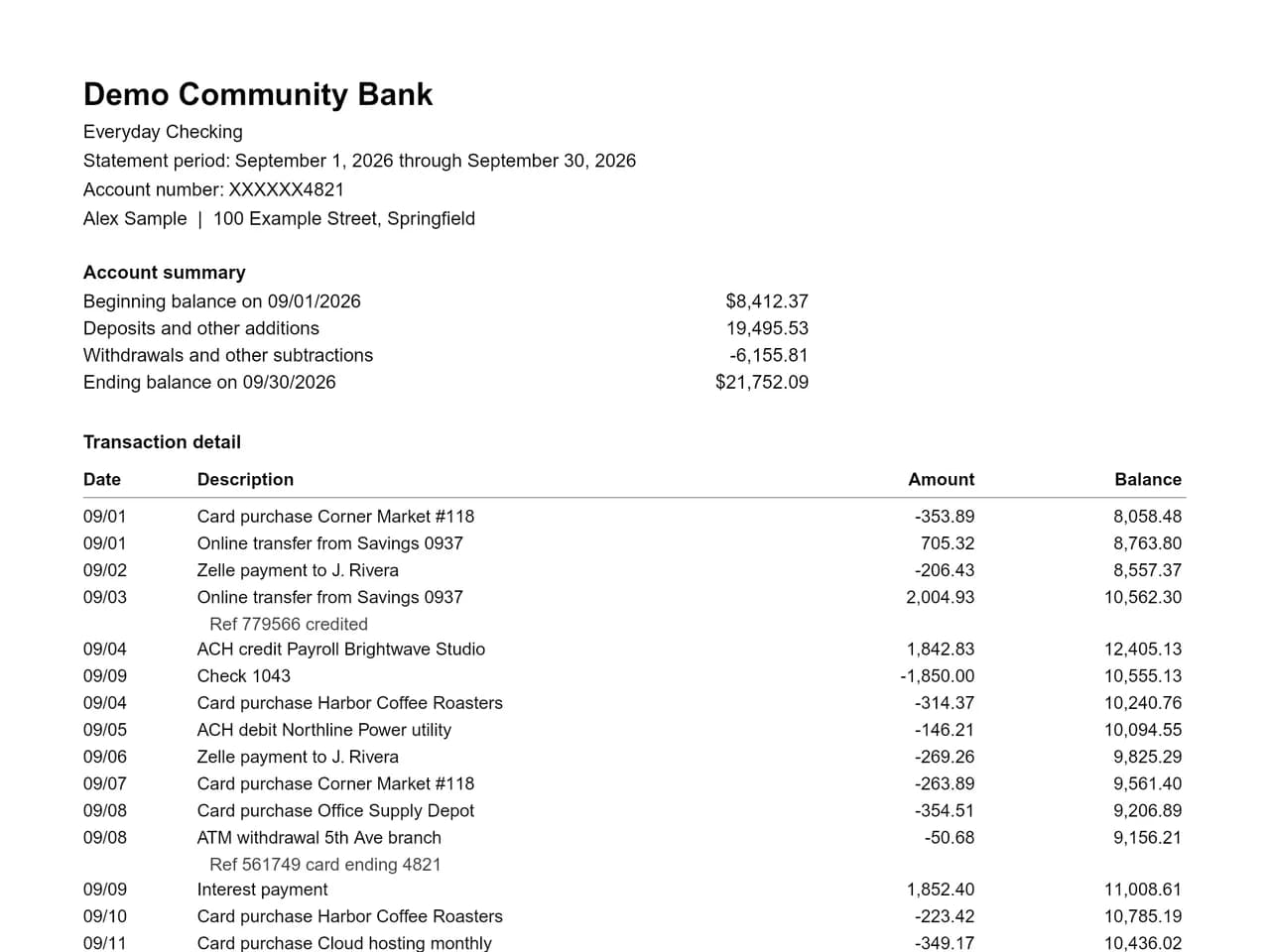
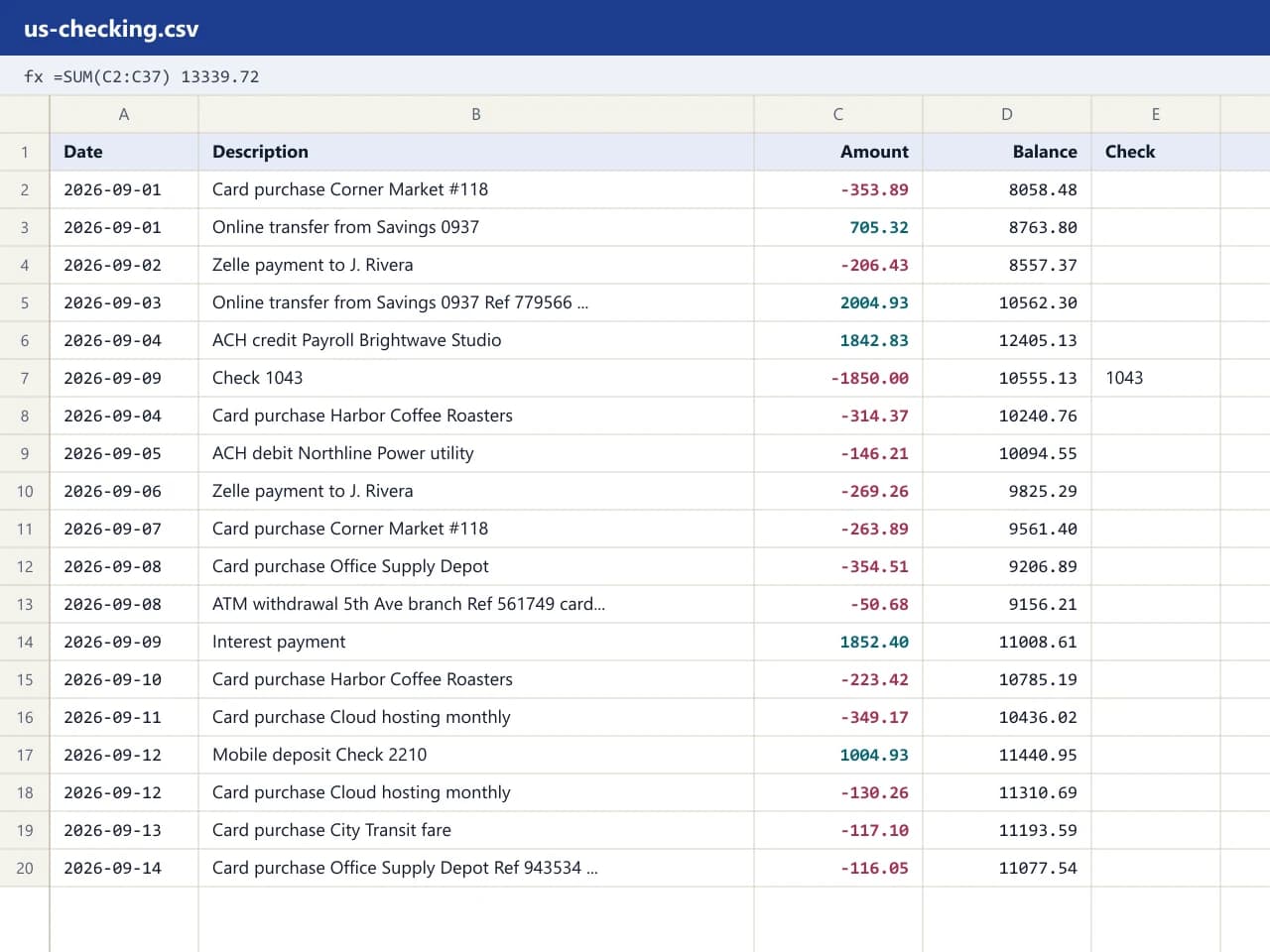 Balanced
- Test input
- us-checking.pdf
- Output
- us-checking.csv
- Rows
- 36
- Money in
- 19495.53
- Money out
- 6155.81
- Pages
- 2
- Currency
- USD
- Output size
- 3 KB
- Engine time
- 29 ms
How we test: each test statement prints an opening and a closing balance, and the run only counts when the rows add up to both. More on the about page.
Which bank statement file to import into Google Sheets
Every run gives you both a CSV and an .xlsx file, and Google Sheets opens either one. The CSV is the lighter choice. It holds a single table, and its YYYY-MM-DD dates leave no doubt about which part is the month.
The Excel file carries a little more. Besides the Transactions sheet, it has a Check sheet with the opening balance, the closing balance and the check result. So if you want the totals next to the rows, import the .xlsx and Sheets keeps both tabs. Either way, the amounts arrive as numbers, so SUM and pivot tables work right away.
Import options that matter
When you upload a file, Google Sheets asks where the data should go. Insert new sheets adds a fresh tab and leaves your other tabs alone, which suits a monthly log. Append rows to current sheet adds the new rows under the last row with data, so a year of statements can grow in one tab.
If you append, delete the header row of the new month first, or filter it out later. Also, leave the separator on Detect automatically, because our file uses plain commas. Then sort by the Date column, and the months fall into order on their own.
Useful formulas once the rows are in
Because money out is negative and money in is positive, one SUM over the Amount column gives the net change for the month. For example, =SUMIF(C:C,"<0") adds up all spending, while =SUMIF(C:C,">0") adds up all deposits. Column C holds the Amount in our layout.
To find one payee, add a filter to the Description column, or use a formula such as =FILTER(A:C, ISNUMBER(SEARCH("rent", B:B))). The Balance column in F also shows the low point of the month with =MIN(F:F). That makes it easy to see how close you came to zero.
When this is not the right tool
Some people want a live feed, where new bank transactions show up in Sheets each day. We do not connect to bank accounts, so for that you need a service with a bank link. Our tool works with the statement files you already have, one file per run.
Also, scanned statements and photos will not convert, because we do not run OCR yet. If your bank lets you download a CSV for the dates you need, you can import that file straight into Sheets and skip us. We help most when the bank gives you only a PDF.
Bank statement to Google Sheets: quick facts
| Item | Detail |
|---|---|
| Files to import | CSV (UTF-8) or .xlsx |
| Sheets menu | File, then Import, then Upload |
| Columns | Date, Description, Amount, Debit, Credit, Balance, Check number |
| Signs | Money out negative, money in positive |
| Dates in the CSV | YYYY-MM-DD |
| Free use | First statement free, up to 5 pages, with a free account |
Bank statement to Google Sheets FAQ
How do I import a bank statement into Google Sheets?
Convert the PDF here, then in Sheets choose File, Import, Upload and pick the CSV or .xlsx file. Choose Insert new sheets to keep your other tabs as they are.
Can Google Sheets open a PDF bank statement?
No, Sheets cannot read a PDF as a table. You first need to turn the PDF into CSV or Excel, which is what this tool does.
Should I use the CSV or the Excel file?
Use the CSV for one clean table. Use the .xlsx if you also want the Check sheet with the opening and closing balance.
Can I add each month to the same sheet?
Yes. Pick Append rows to current sheet when you import, then remove the extra header row. Sort by date, and the months line up.
Is it free?
Your first statement is free with a free account, up to 5 pages. After that, one statement costs $2.99 up to 10 pages, with no plan needed.